CampOffice
Menu

For Jewish overnight and day camps

The camp office, from first application to last bus home.

Applications, acceptances, bunks, payments, forms and messages to families, in one place, for Jewish overnight and day camps. At every point in the year, CampOffice shows the next task first.

A sample camp with made-up families. Click anything; nothing is actually sent. Applying shows the form parents start from on a camp's own website.

Try it free for 14 days. No card required.

A miniature summer camp: bunkhouses, a lake with a canoe and a dock, a ball field, two boys learning at a picnic table, the camp bus arriving, and the camp flag with its sun.
A painting of boys at summer camp in yarmulkes and tzitzis: two learning together at a picnic table, two in a canoe on the lake, and a baseball game by the bunks.
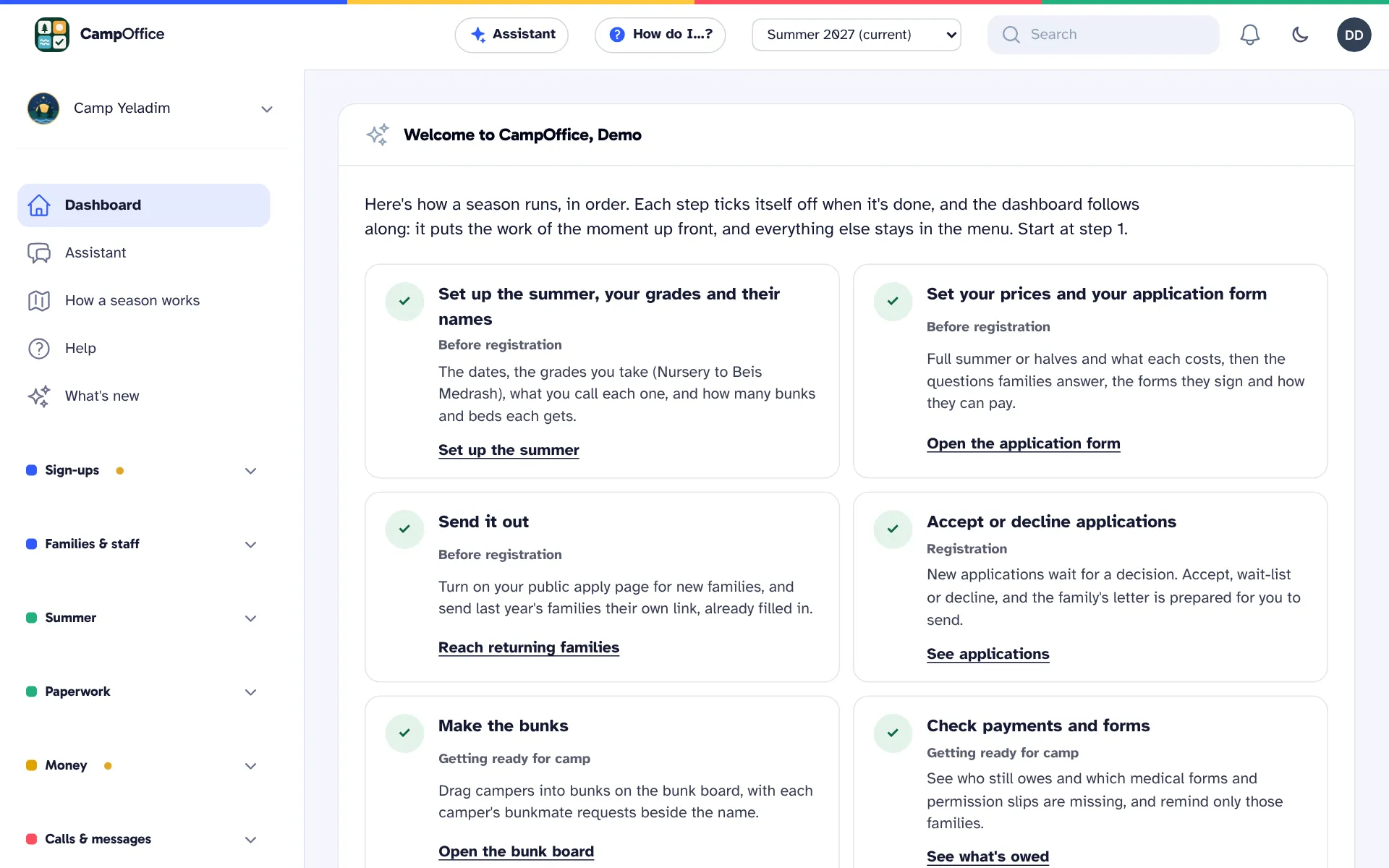
CampOffice dashboard for a sample camp, listing the season's steps in order: set up the summer, set prices and the application, send it out, accept applications, make the bunks, check payments and forms, run camp.

The actual office, from a sample camp with made-up families.

What changes

What changes in your office

Less time on paper, spreadsheets and phone calls, and a clear list of what still needs to be done.

  1. 01 / 09

    Parents apply online, once

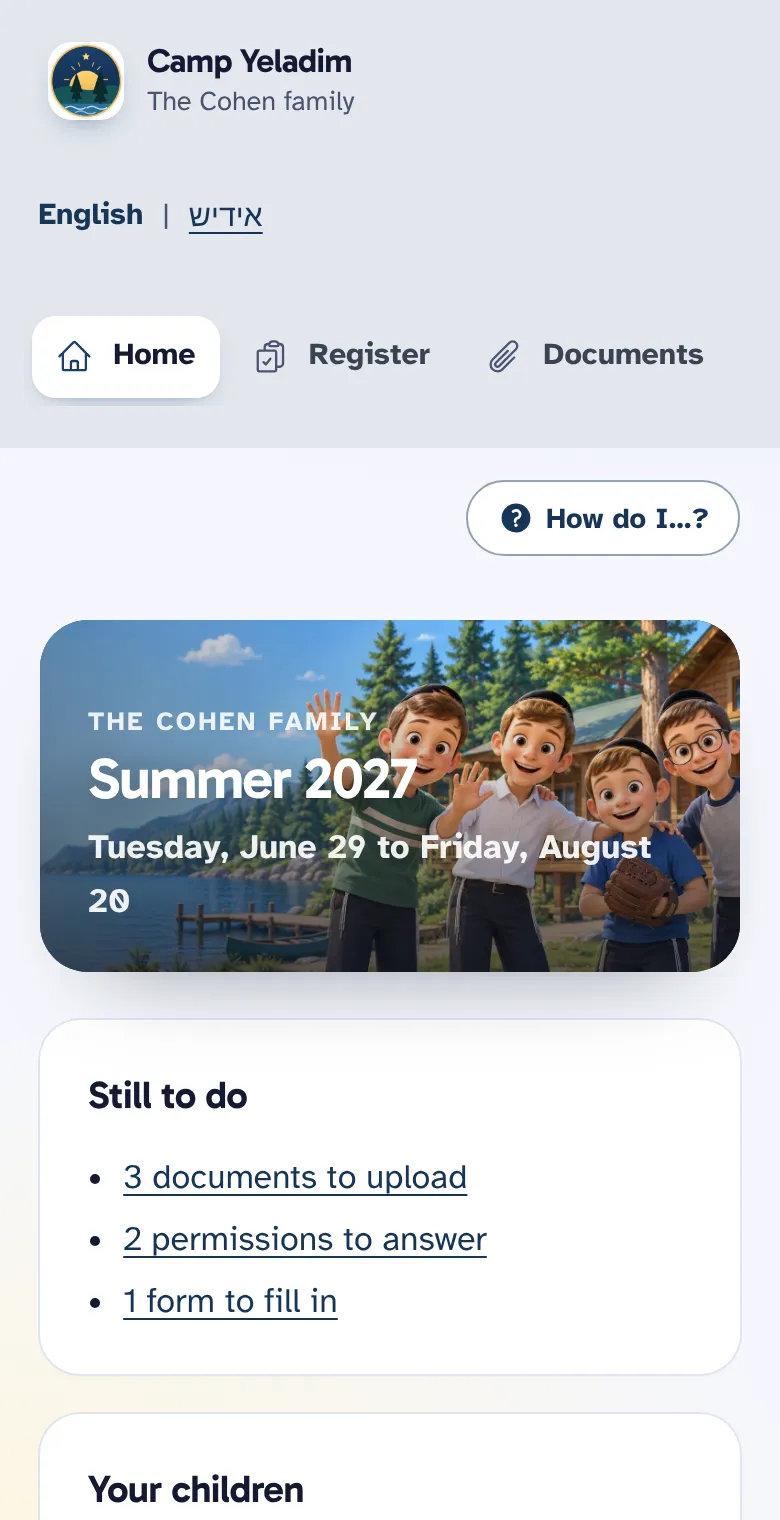
    Every family gets its own page, with no password. Returning campers come back with last year's details filled in and moved up a grade, so parents only update what changed.

    How registration works
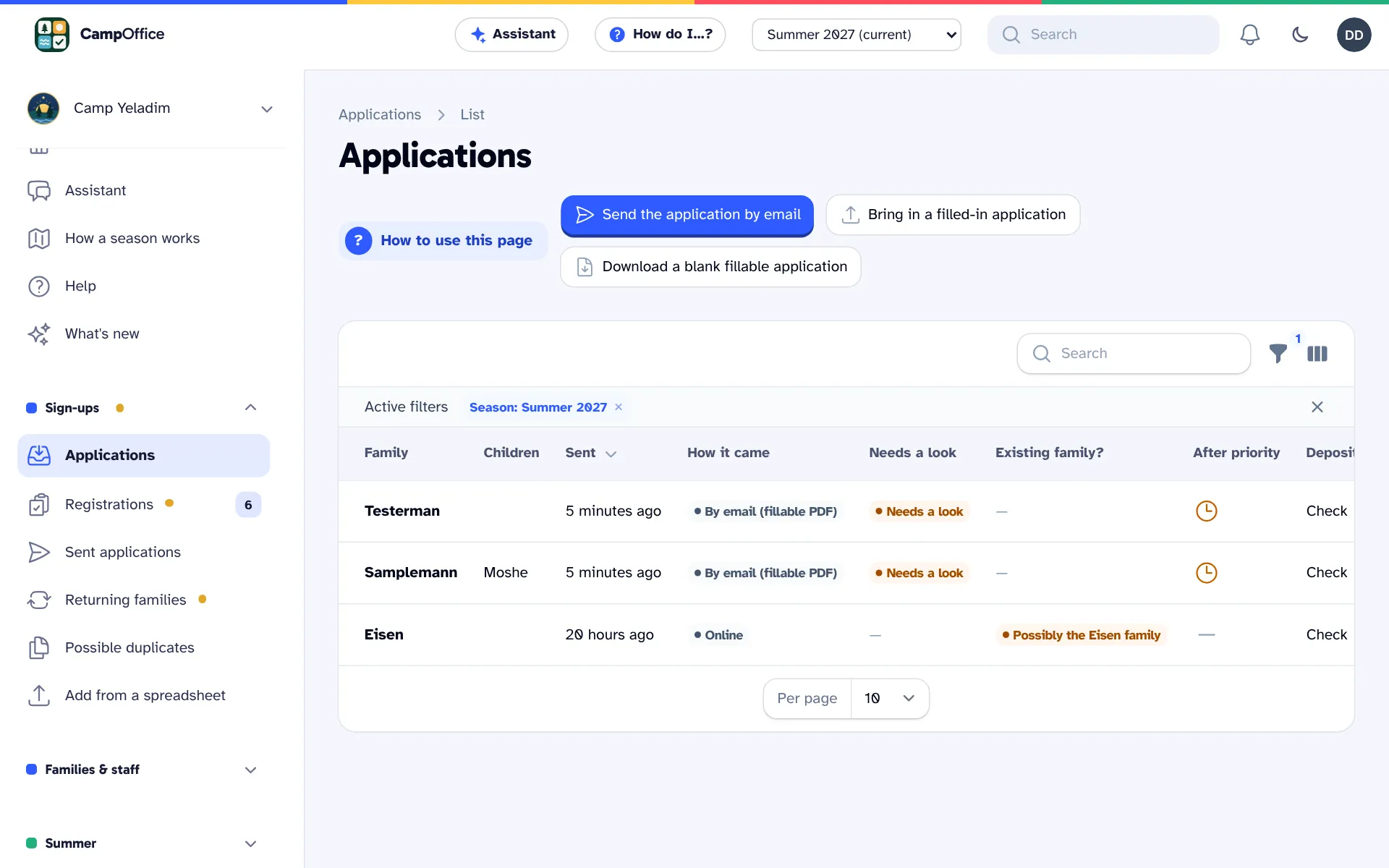
    The Applications list: each family's application with how it came in, what needs review, a possible match with a family already on file, and how they plan to pay.
  2. 02 / 09

    Accept or decline in a few clicks

    New applications wait in one list with everything the family sent. Accept, wait-list or decline, and CampOffice prepares the letter to the family for you to send.

    More about applications
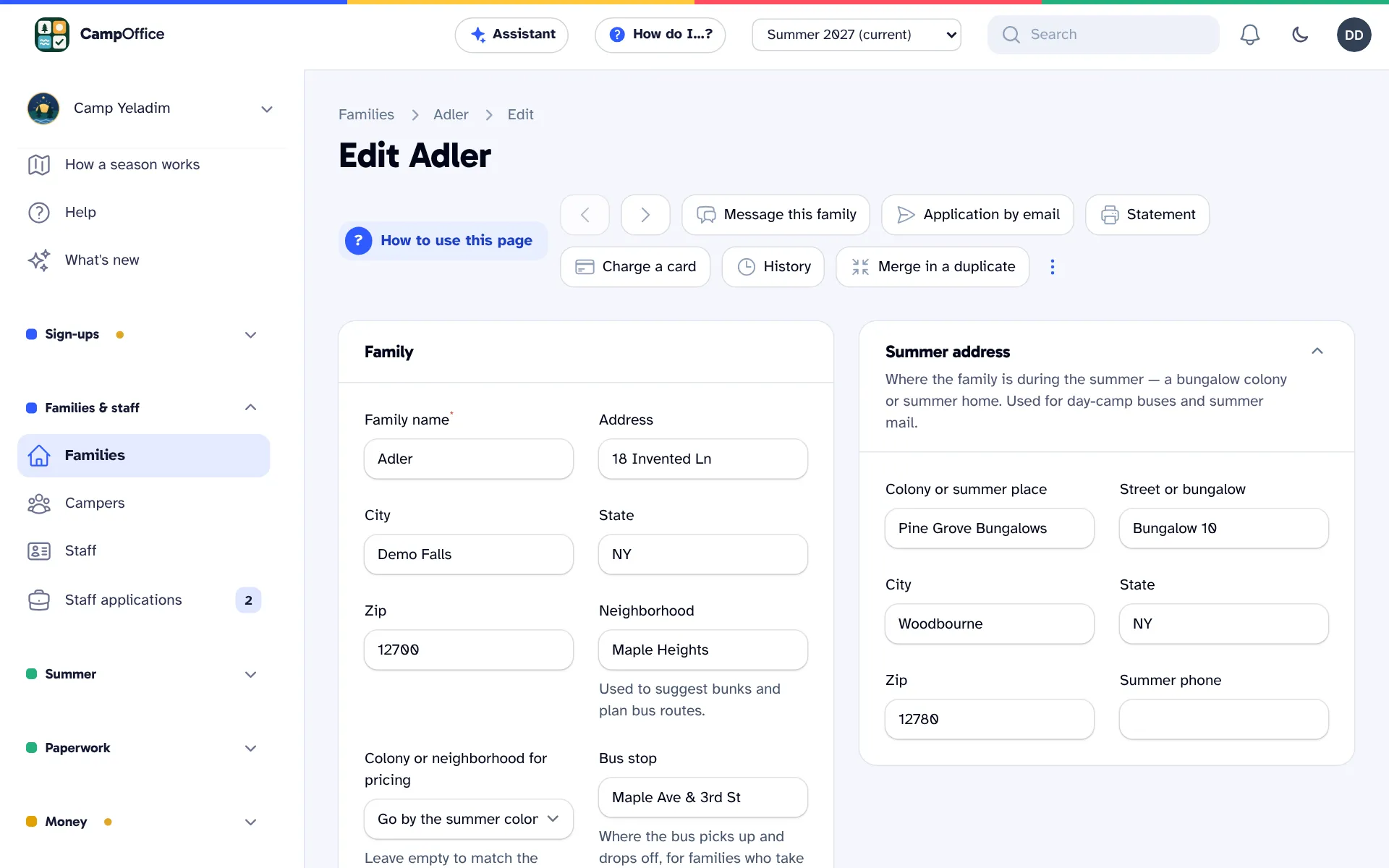
    A family's page in the office, with buttons to message the family, email the application, print a statement, charge a card and view the history, above the family's address and summer address.
  3. 03 / 09

    Bunks without the whiteboard

    From Nursery to Beis Medrash, with your own names for each grade. Drag campers into bunks. Bunkmate requests appear next to each name, and you can see which bunks still have room.

    Bunks, buses and staff
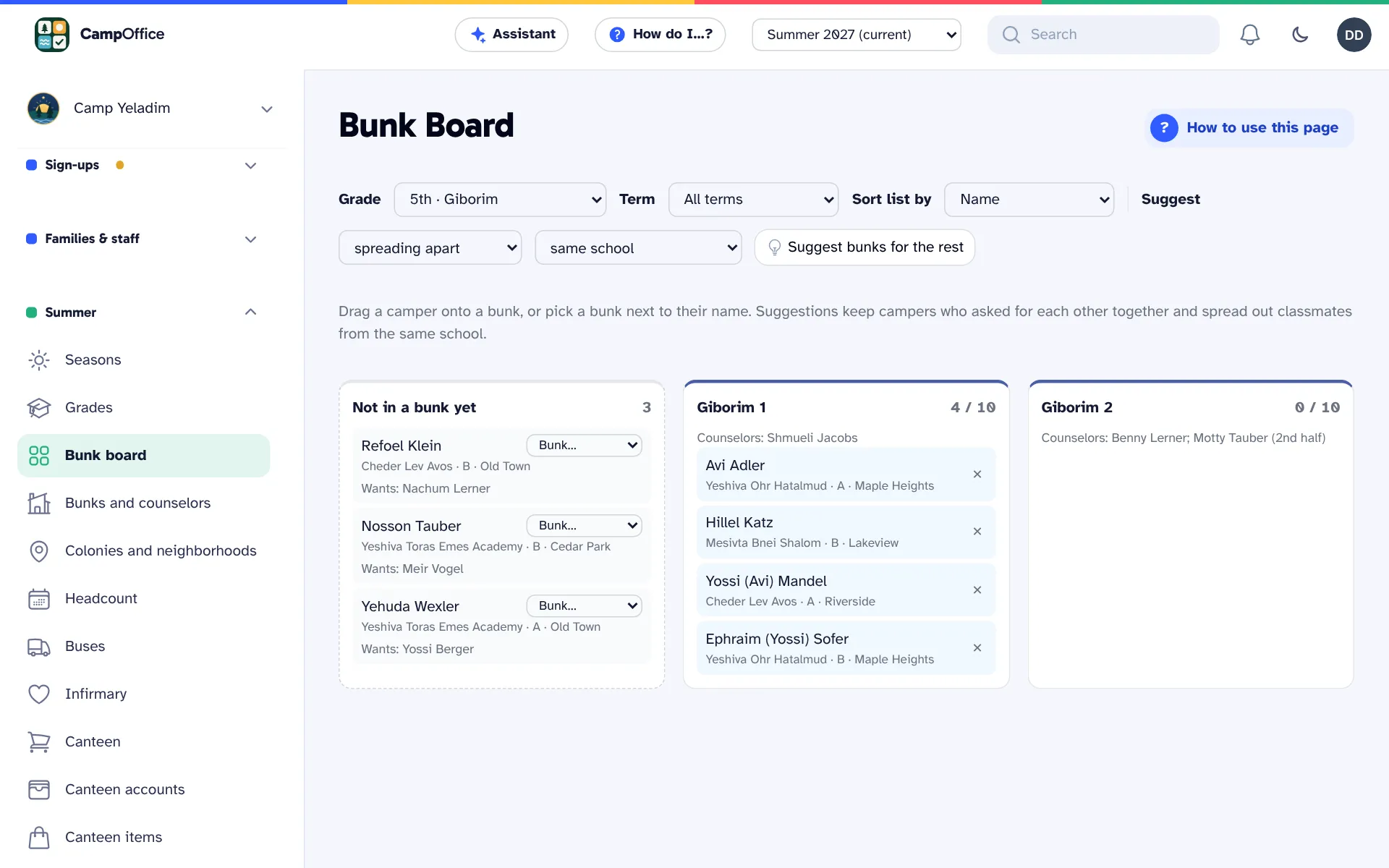
    The bunk board for one grade: campers not yet in a bunk with the friend each requested, two bunks with their counselors and filled beds, and a button to suggest bunks for the rest.
  4. 04 / 09

    Bus routes planned for you

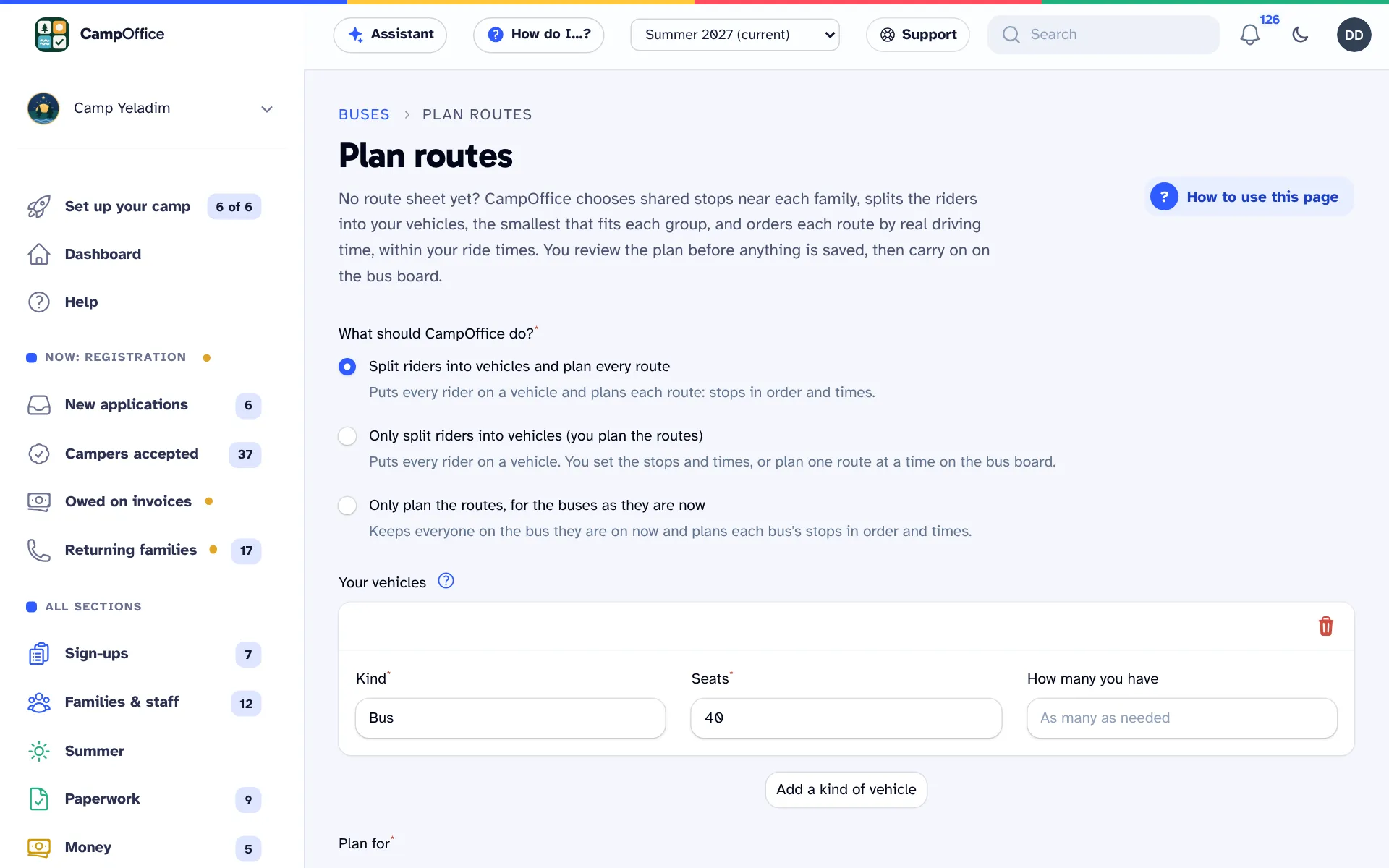
    No route sheet? CampOffice splits the riders into your buses and plans each route from the map, with shared stops near each family and pickup times by real driving time. You review it before anything is saved, or import your bus company's routes instead.

    Bunks, buses and staff
    Plan routes: CampOffice splits the riders into your vehicles, the smallest that fits each group, and plans each route by real driving time, for you to review before anything is saved.
  5. 05 / 09

    Know who still owes, and which forms are missing

    Card, bank transfer, Zelle, check and cash payments all post to the family's balance. Medical forms and permission slips are tracked per camper, so you remind only the families who haven't sent them.

    Billing and payments
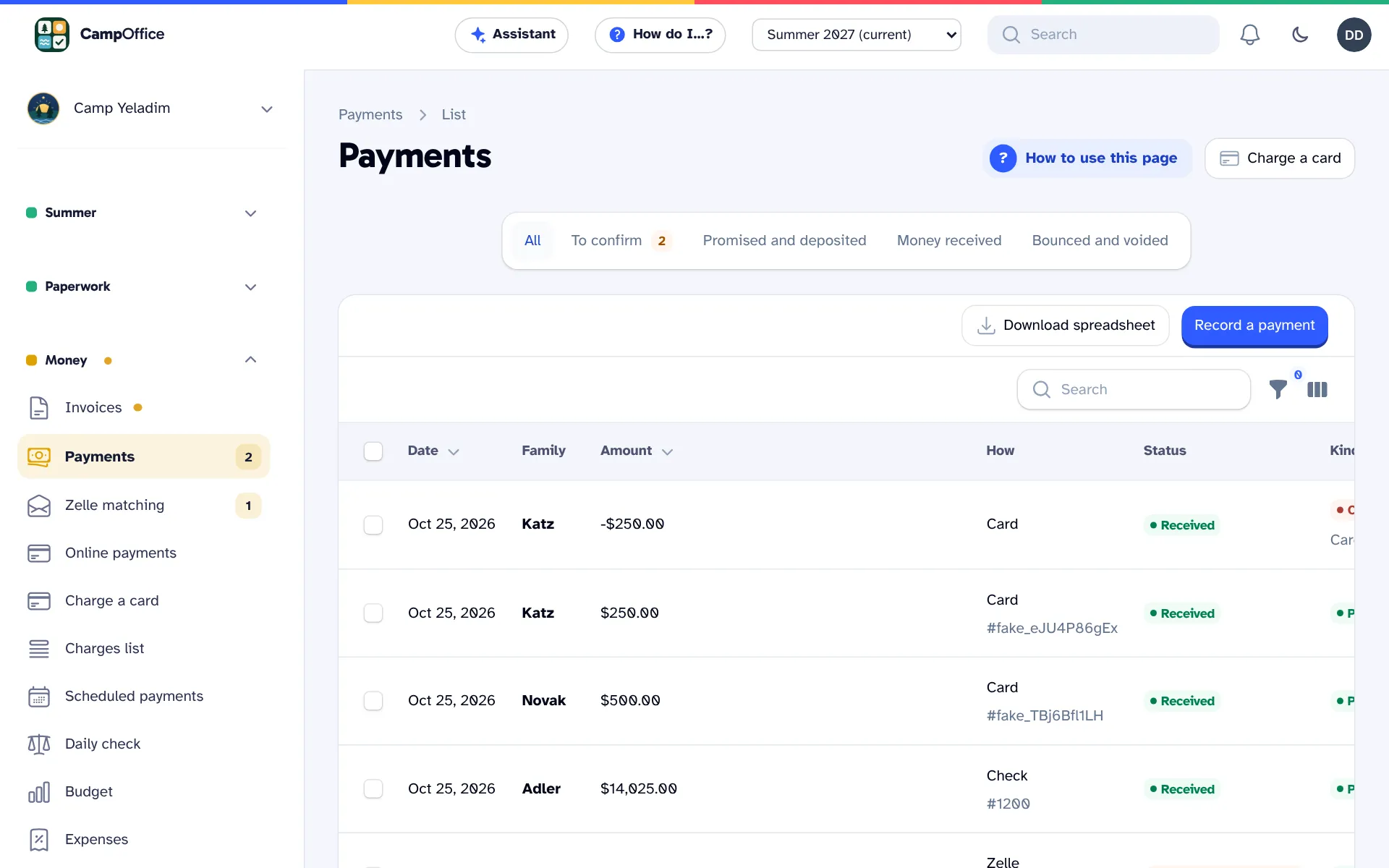
    The Payments list with tabs for payments to confirm, promised, received and bounced, showing card, check and Zelle payments by family.
  6. 06 / 09

    One message reaches every parent

    Send the packing list or the bus times by email, text or phone call. Someone in the office approves every message. Texts and calls only go to parents who opted in.

    Messages, calls and the hotline
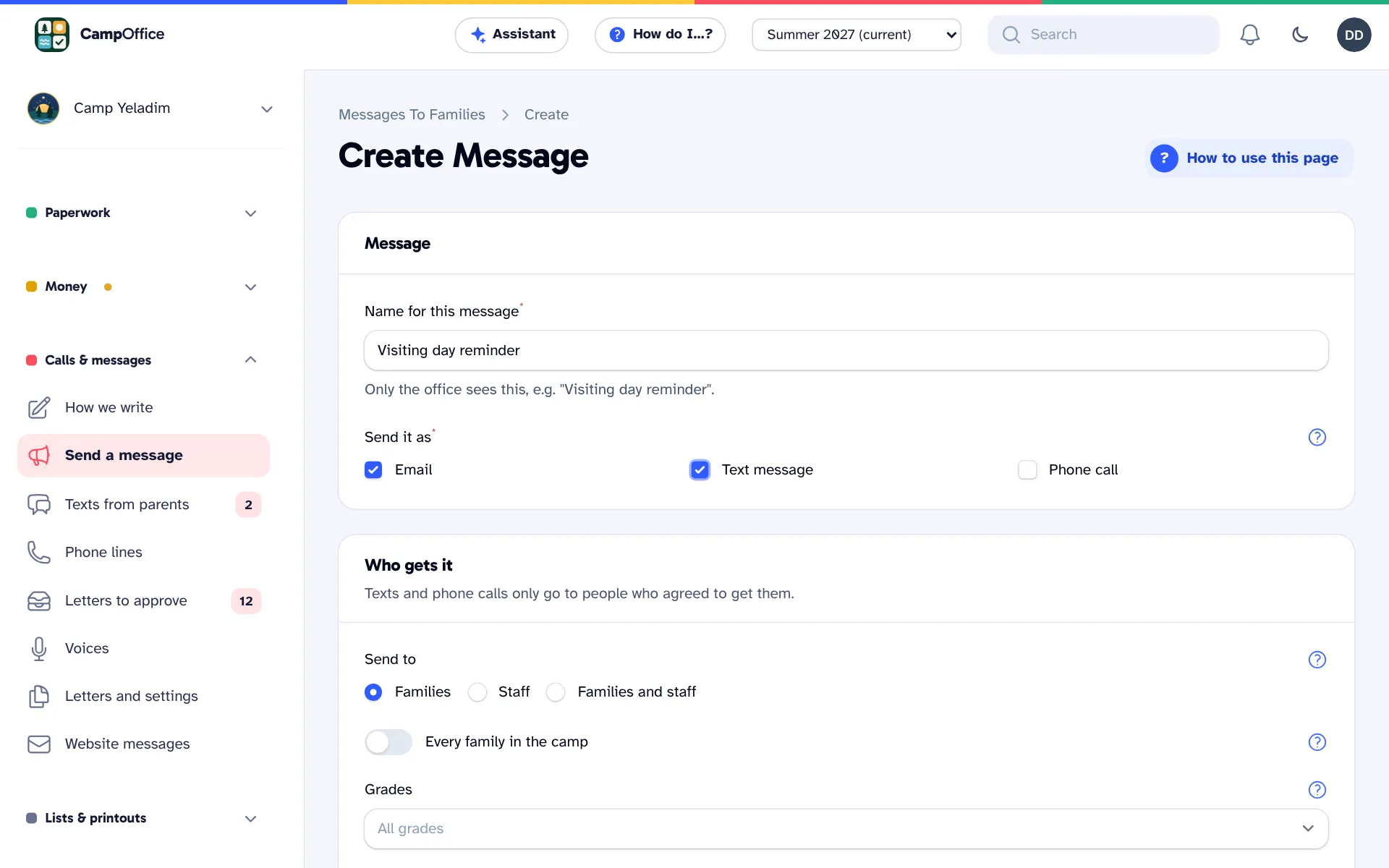
    Writing a message to families: its name, sent as email and text, and its recipients, by families or staff, grades and bunks. Texts and calls only go to people who opted in.
  7. 07 / 09

    Slideshows of the summer, ready to share

    Turn the week's photos into a slideshow video with titles and music. Tell the slideshow assistant what to change in plain words, see it right away, then make the video for families.

    Messages, calls and the hotline
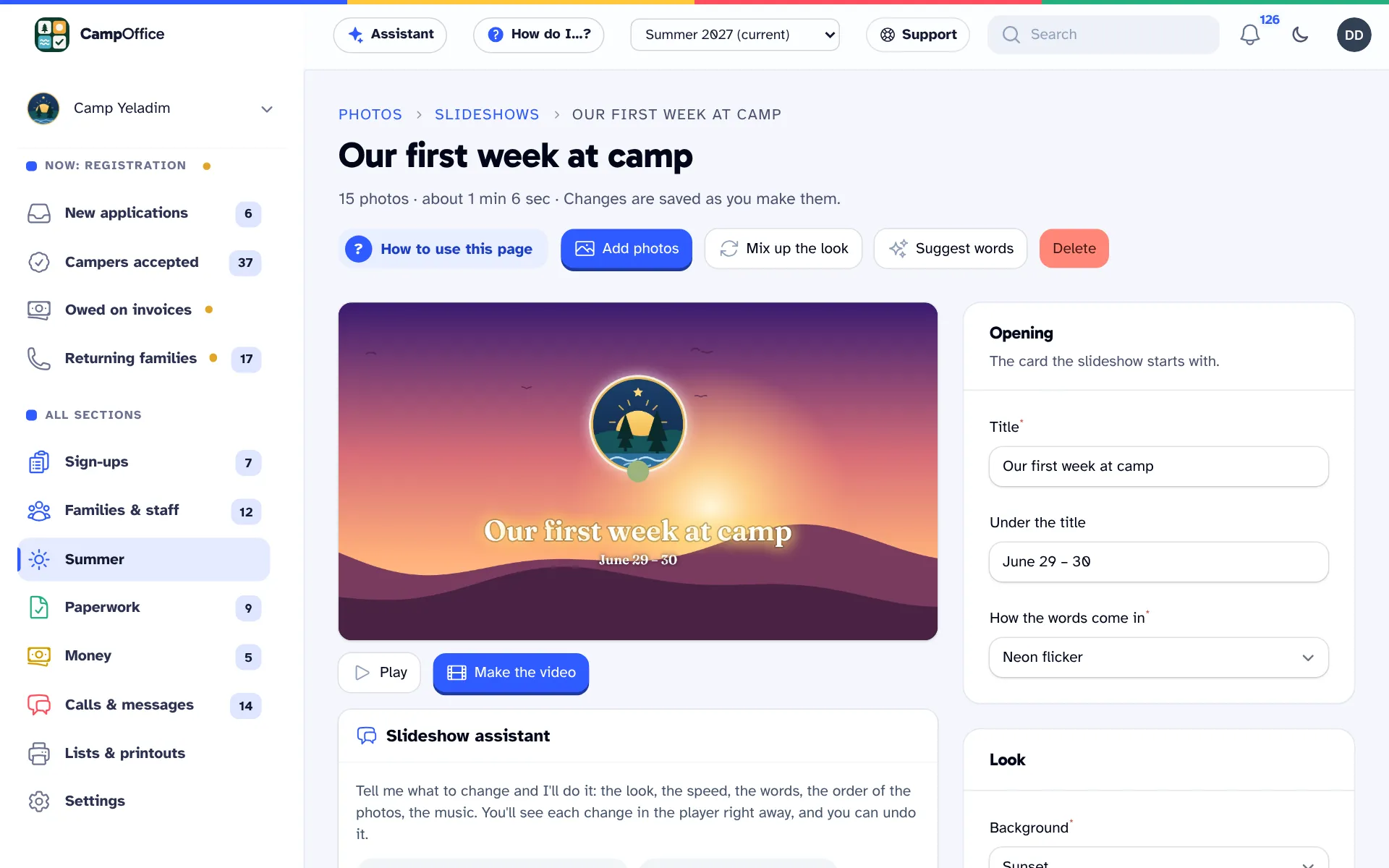
    A slideshow of the first week at camp: the opening title card in the player, buttons to add photos, mix up the look and suggest words, Make the video, and the slideshow assistant.
  8. 08 / 09

    Your books stay up to date

    Invoices and payments go to QuickBooks Online, Xero or QuickBooks Desktop, so your bookkeeper doesn't enter everything twice. Nothing is written to your books until you turn it on.

    QuickBooks, Xero and Zelle
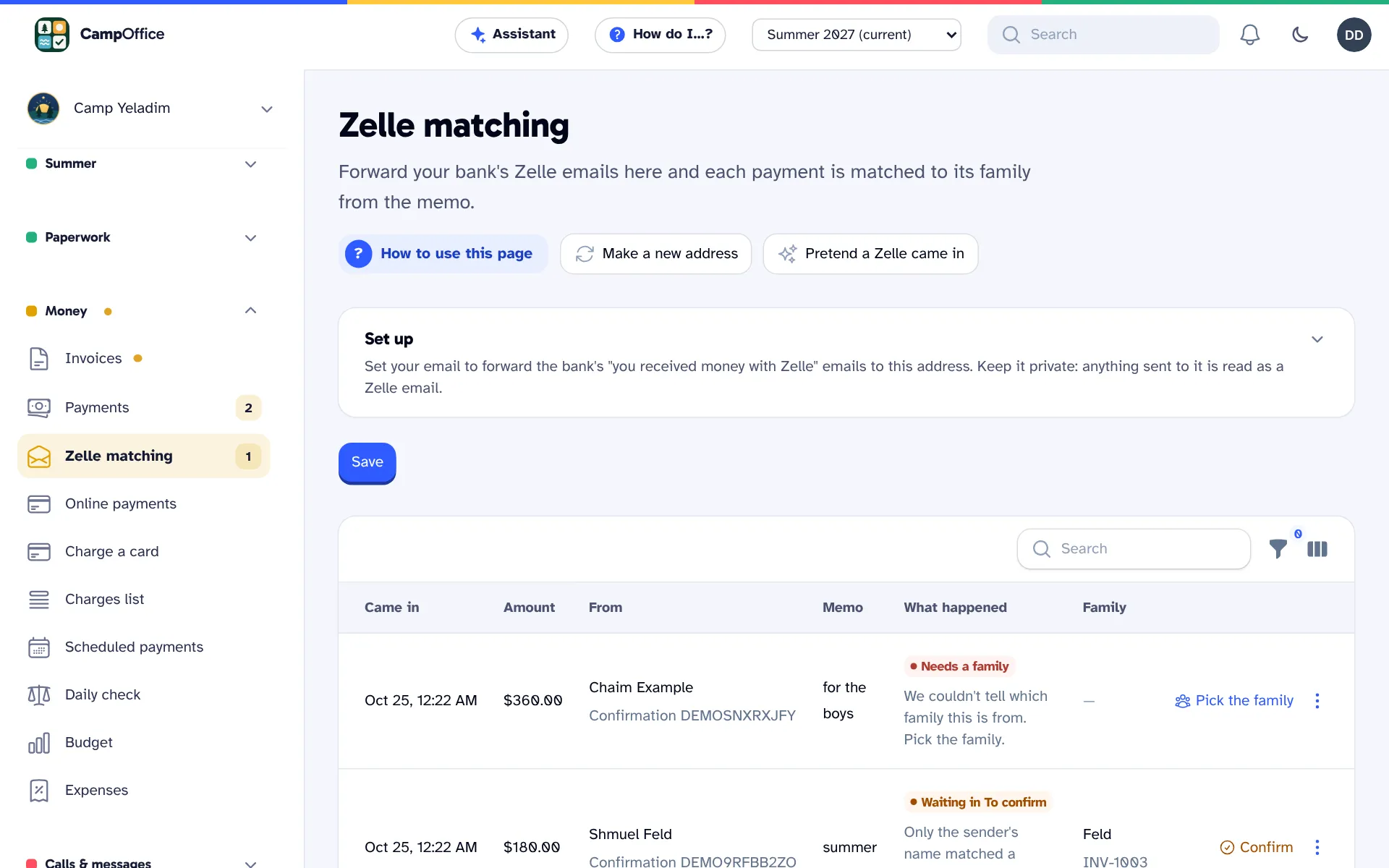
    Zelle matching: Zelle payments forwarded from the bank, one applied to its family automatically, one waiting for the office to confirm, and one waiting for the office to choose the family.
  9. 09 / 09

    Your information is safe

    Everything is stored securely in the cloud, with two backups running all the time: every change is copied to a second secure location within seconds, and a full copy is saved every hour. Only the people you invite to your office can see it.

    Questions directors ask
    CampOffice dashboard for a sample camp, listing the season's steps in order: set up the summer, set prices and the application, send it out, accept applications, make the bunks, check payments and forms, run camp.

The real screens

See the actual office

Every picture on this site is a CampOffice screen, from a sample camp with made-up families. Explore it yourself, or read how each part works.

Every part

Everything in the office

The cards above are the highlights. Here is every part, all of it included in both options. We set it up with your camp and bring in last year's families.

    • An online application with your own questions and a waiver signed on screen
    • Returning campers filled in from last year and moved up a grade
    • Paper and fillable PDF applications in the same list
    • Accept, wait-list or decline, with the letter to the family prepared
    • Terms, prices by grade, deposits, add-ons and discounts
    • "Pick your dates" sign-up by the day or week for day camps
    • Import families from any spreadsheet, with possible duplicates flagged
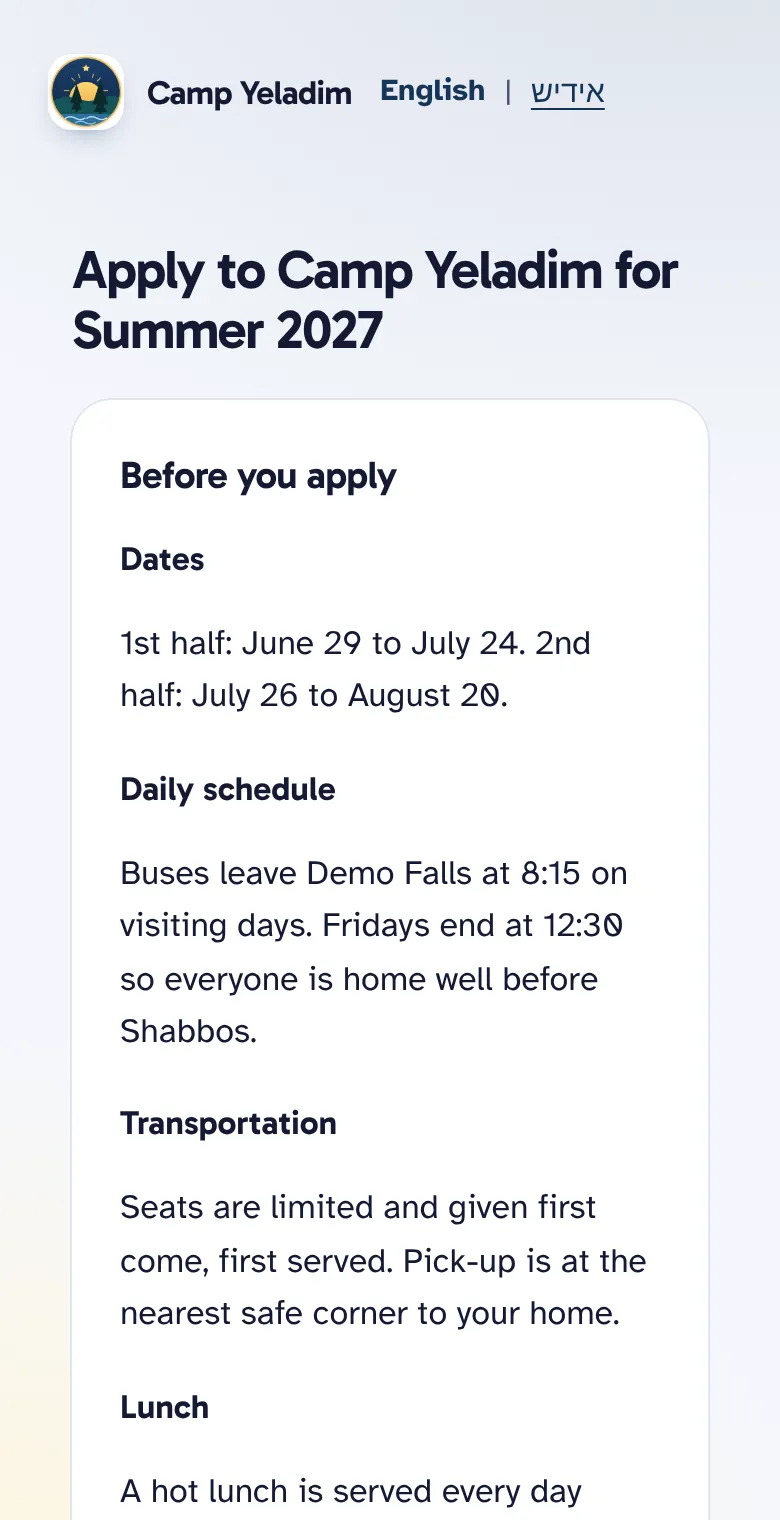
    The camp's apply page on a phone, starting with what families should know before they apply: dates, the daily schedule and transportation.
    • A private page for every family, with no password
    • Family pages, the application and letters in English or Yiddish
    • A staff list with counselors placed in their bunks
    • Staff hiring: a jobs page, references, interviews and offers
    • Office sign-ins by role: owner, director, office, bookkeeper, nurse and board
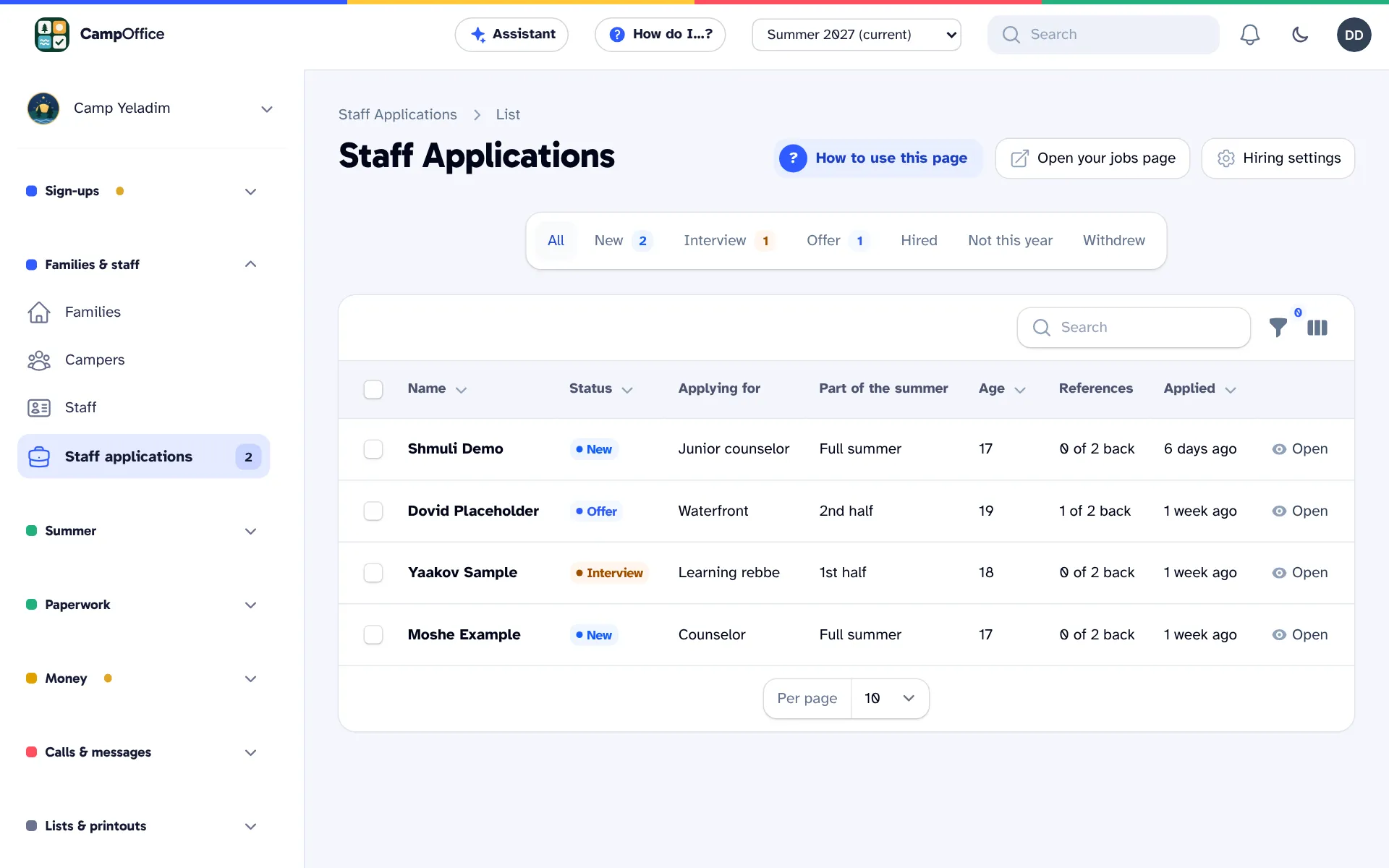
    Staff applications: counselor and staff applicants with the job they want, the part of the summer, references received, and each applicant's status from new to hired.
    • Your grades with your own names, and suggested bunks
    • A drag-and-drop bunk board with bunkmate requests and suggestions
    • Daily headcount
    • An infirmary log for the nurse
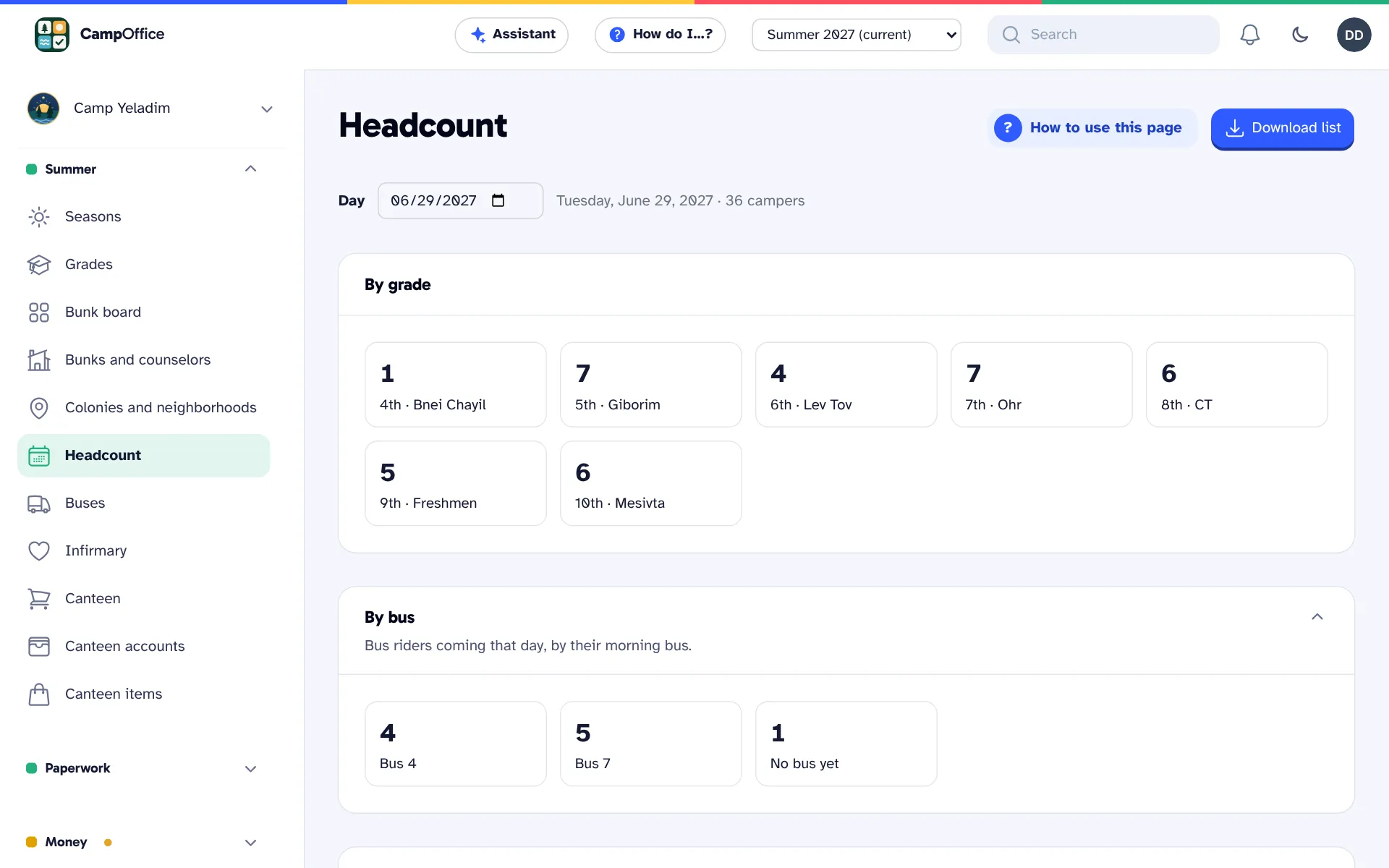
    Headcount for one day of camp: how many campers are present in each grade and on each bus.
    • Bus routes planned from the map, with shared stops and pickup times by real driving time
    • Riders split into your buses and vans, the smallest that fits each group
    • Or send your bus company the rider list, or only the changes, and import their routes
    • A drag-and-drop bus board, and every route can be changed by hand
    • Rider lists and bus sheets for drivers
    • Neighborhoods for buses and pricing
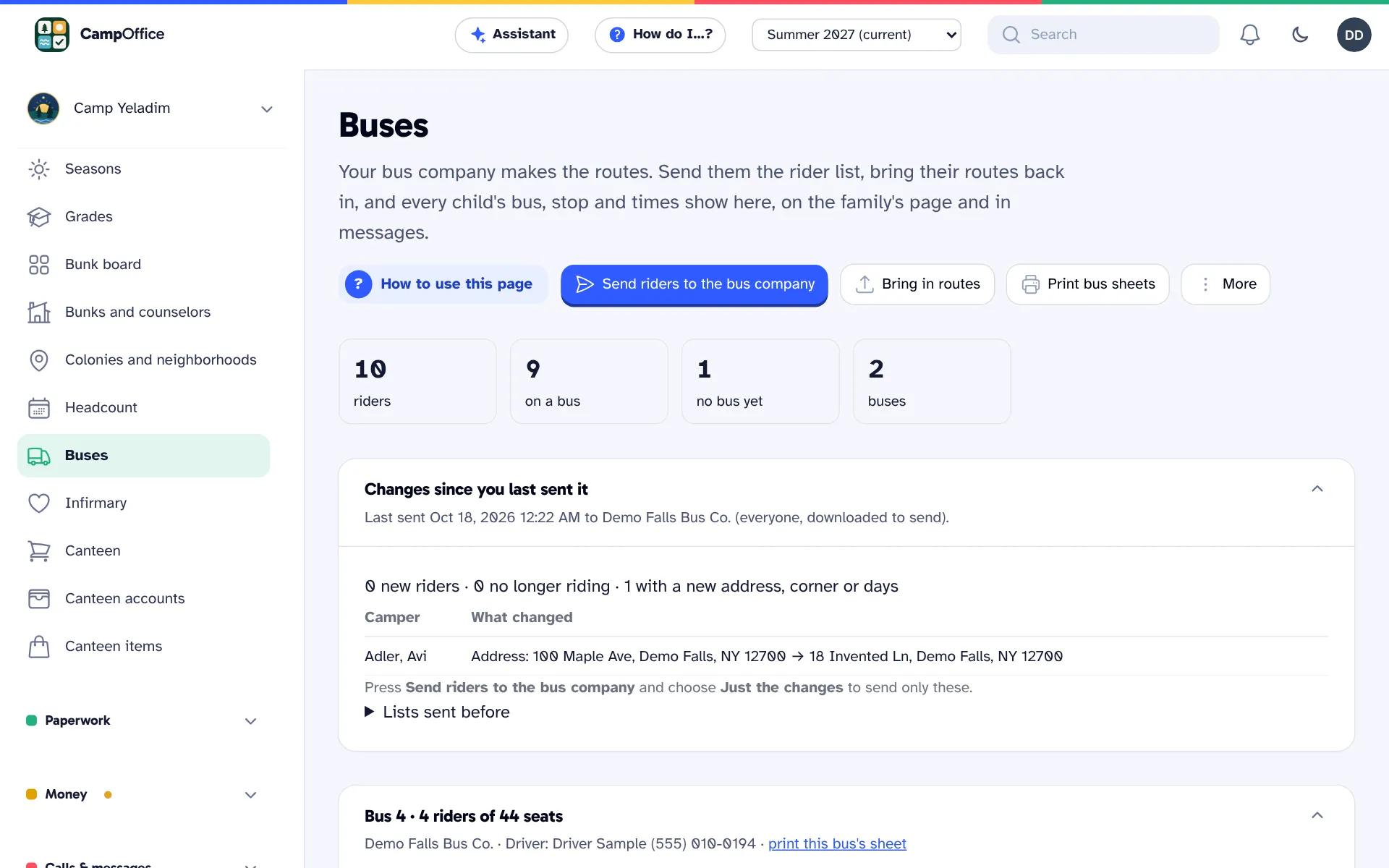
    The Buses screen: riders, who is on each bus, the changes since the rider list was last sent to the bus company, and each bus's stops with pickup and drop-off times.
    • The day's photos uploaded and sorted by day and section
    • Favorites starred for the newsletter, and downloads as a ZIP
    • This week's slideshow made from the photos in one click
    • Your choice of background, transitions, lettering and music
    • A slideshow assistant: say what to change in plain words
    • Saved as a video to share with families
    A slideshow of the first week at camp: the opening title card in the player, buttons to add photos, mix up the look and suggest words, Make the video, and the slideshow assistant.
  1. Paperwork

    • Medical forms and other documents, checked off for each camper
    • Permissions families agree to, such as a photo release
    • Forms and permission slips, including your existing paper forms
    • Printouts: bunk lists, arrival cards, rosters and reports
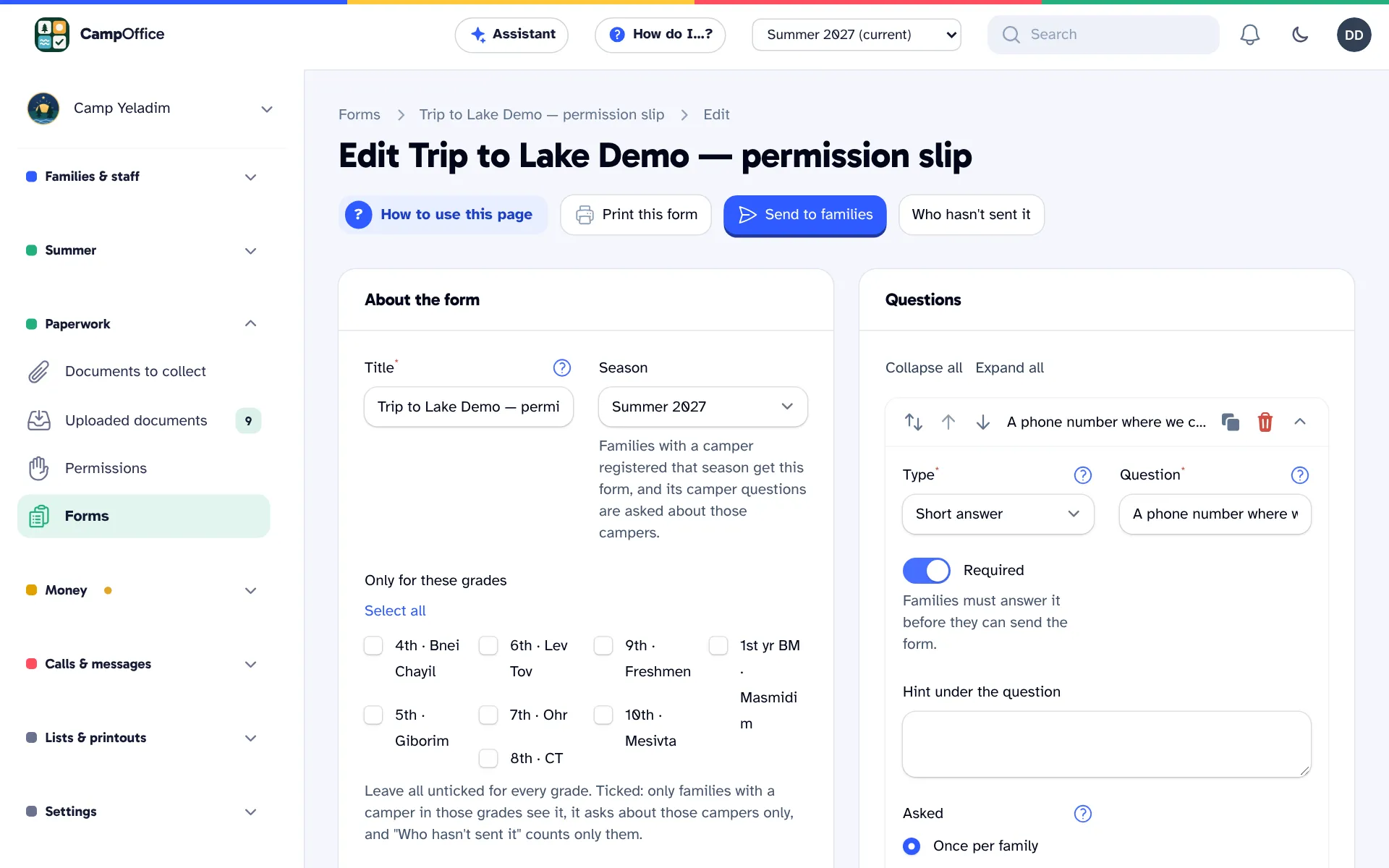
    Building a permission slip: the form's title, season and who fills it in, and its questions, each asked once per family or for each camper.
    • Invoices, statements and receipts with your logo
    • Card and bank payments online, a card on file and scheduled payments
    • Zelle matched to families, plus checks and cash
    • Pay by phone, with the family's own phone PIN
    • Credits, refunds, donations and donation receipts
    • QuickBooks Online, Xero or QuickBooks Desktop, once you turn it on
    • A daily payment check, and expenses tracked against your budget
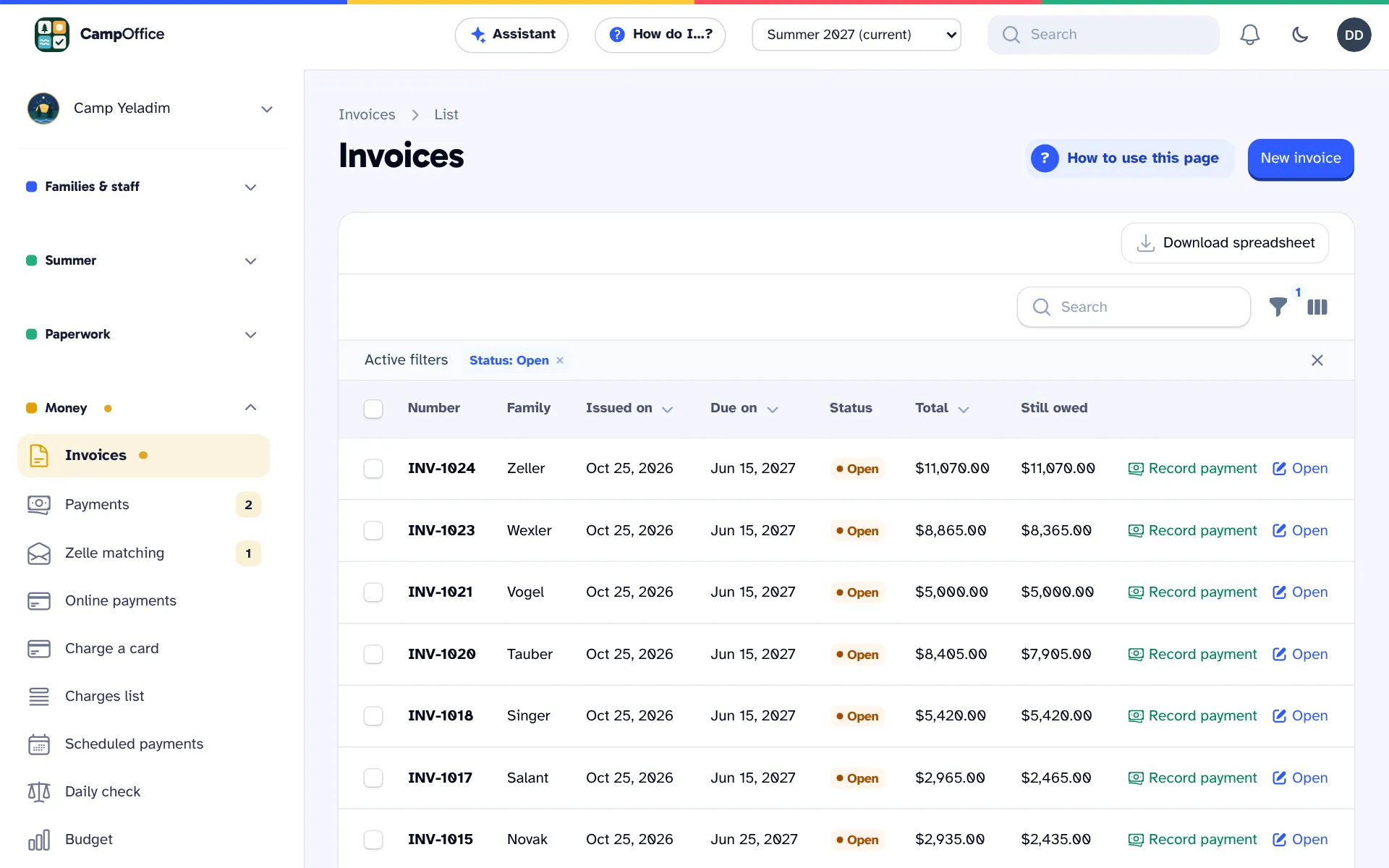
    The Invoices list: each family's invoice with its total and balance due, and a Record payment button on every row.
    • Email, text or phone call to everyone, a grade, a bunk or a bus
    • Recorded calls, or typed words read aloud
    • Every message approved by someone in the office before it is sent
    • Texts and calls only to parents who opted in, never during quiet hours
    • Your own camp phone number and hotline
    • Replies from parents in one inbox
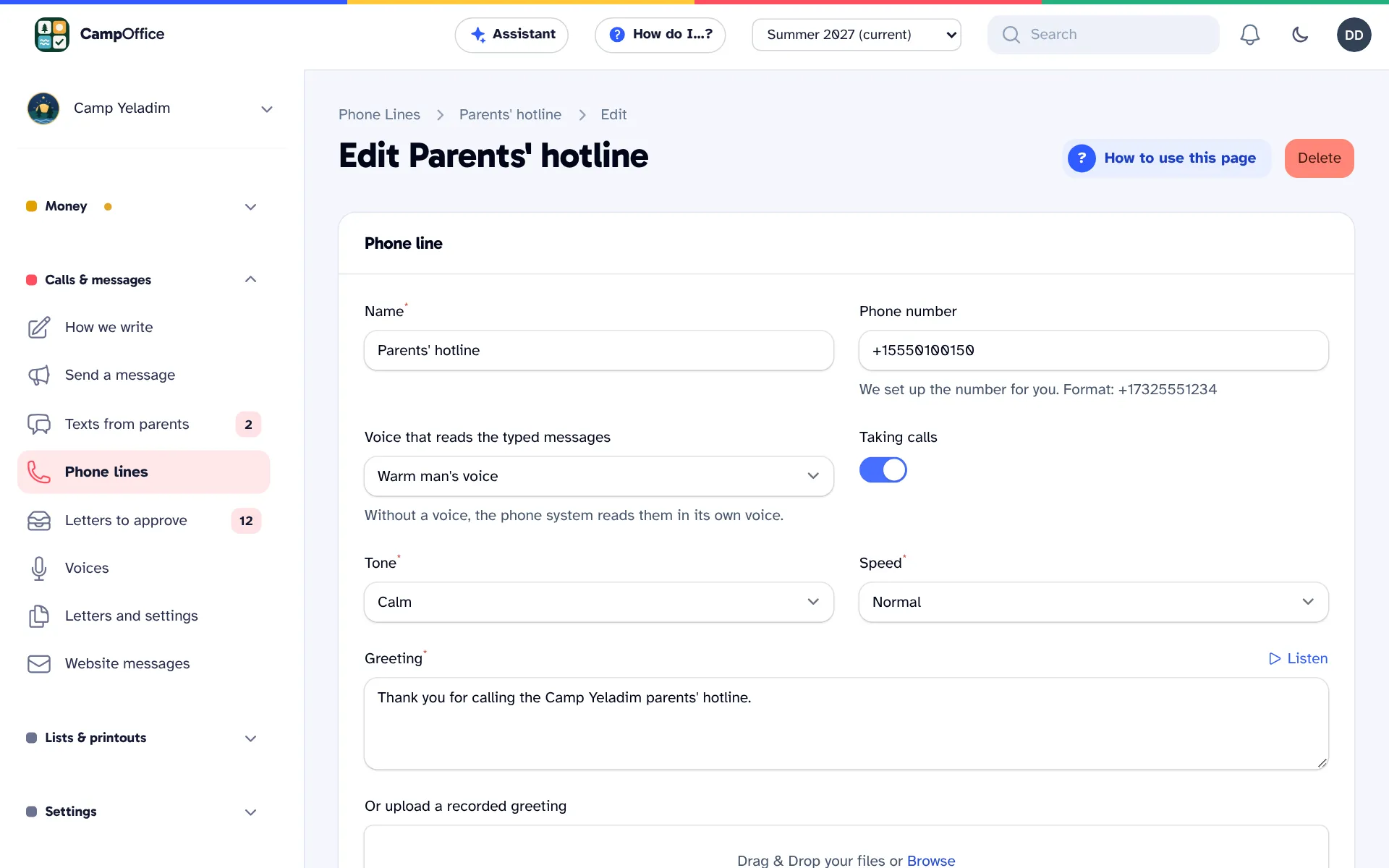
    A camp hotline's settings: its phone number, the voice and tone that read typed messages, and the greeting callers hear, with the option to upload or record it instead.
    • A free website for your camp, at your own domain, with a contact form
    • A dashboard that follows the camp year
    • The office assistant: ask questions and approve what it prepares
    • "How to use this page" and "How do I…?" on every screen
    • Dictation in any text box
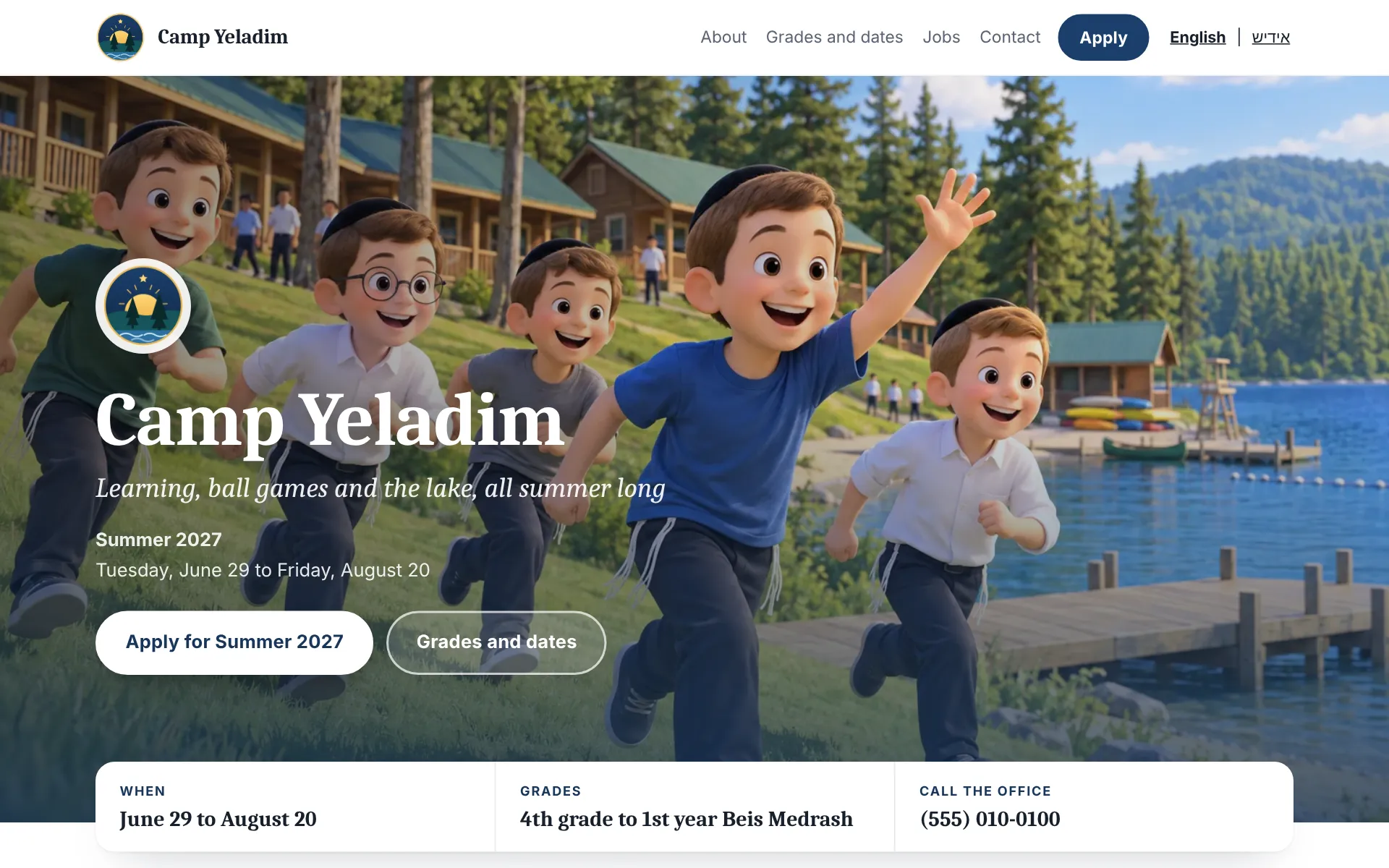
    A camp's own website made in CampOffice: the camp's name and tagline, this summer's dates, an Apply button, contact details, and an English and Yiddish switch.

Some parts, such as card payments, texts, phone calls and the assistant, are turned on when your camp is ready.

Four seasons, one office

Built around the camp year

A camp office has four different jobs over a year. The dashboard shows the current work first, and everything else is one click away.

  1. An autumn day at home: a camper smiles over the letter about next summer, dreaming of swimming and ball games at camp.

    1 · After Sukkos

    Before registration

    Set up the summer: dates, the grades you offer and their names, bunks and prices. Build your application with your own questions, and see which of last year's families haven't signed up yet.

  2. Snow outside the kitchen window: two boys cheer at the laptop with their father as they find out they're going to camp.

    2 · Winter

    Registration

    Send families the link. Applications arrive with forms signed and deposits paid. Accept or decline, keep a wait-list, and track how full each grade is.

  3. Packing day: a camper waves beside his duffel bag while his father folds clothes into the camp trunk.

    3 · Spring

    Getting ready for camp

    Make the bunks, collect outstanding balances and follow up on missing medical forms. Send the packing list and the bus times to every parent at once.

  4. Three campers toasting marshmallows at the campfire by the lake at sunset.

    4 · Summer

    Camp

    See who is at camp today. Parents call one camp hotline for the daily update and visiting day. The nurse logs every infirmary visit, and the office sends news to families by email, text or phone call.

Office assistant

Ask the office assistant

Type “text the Freshies parents that the bus leaves at nine thirty Sunday” or “bill the Klein family fifty dollars for canteen,” and the office assistant prepares it. You see exactly what will happen and approve it before anything is sent or billed.

How the office assistant works

Pricing

Two options

Own your copy outright, or have us run it for you.

Own it

$5,000 once

Your camp's own copy, built around the way you work, and yours to keep.

  • Every part of CampOffice: applications, acceptances, bunks, billing, forms, messages to families, the camp hotline and the infirmary log
  • Made to fit your camp. Tell us the features you want and we build them in as part of the price.
  • For a much larger project, we can still build it, at a price we agree on first.
  • We set up everything: email, texts, phone calls, card payments and backups, and import last year's families
  • Fully done for you, with every account in your camp's name
  • We can also provide texts, calls, emails and AI, at the same prices as We run it for you. See the prices

We run it for you

Introductory low price

$1,600 a year

We set it up, keep it running and maintain it. Your office uses it.

  • Every part of CampOffice, kept up to date
  • Your camp phone number and hotline, texts, emails and phone calls to families, all set up and managed by us
  • Card and bank payments from parents, set up and managed by us
  • Each new summer set up with you: dates, grades, prices and the application
  • A real person to call, text or email for support
  • Kept securely in the cloud, with two backups running all the time
  • Texts, calls, emails and AI paid as you use them, from prepaid credit. See the prices

A simple website for your camp is free with either option. For a fee, we design, build and launch a custom, high-end website for your camp, or a parent portal with its own theme. See a sample custom website.

Compare the options

Questions directors ask

Do parents need to create an account?

No. Each family gets its own private link from the office. Parents use it to apply, update phone numbers, choose how they hear from camp, send forms and view invoices.

Is our information safe? Is it backed up?

Yes. Your camp's information is stored securely in the cloud, with two backups running all the time: every change is copied to a second secure location within seconds, and a full copy is saved every hour. Only the people you invite to your office can see it, and each sees only their part. Card numbers are never stored in CampOffice. With Own it, we set up the backups on accounts in your camp's name.

Can parents pay by card?

Yes, if you choose. Families pay by card or bank account on their own page, in full or in monthly payments. Checks, cash and Zelle also work: you record them, and Zelle payments can be matched to families from your bank's emails.

Can we keep our bookkeeping the way it is?

Yes. CampOffice works with QuickBooks Online, Xero and QuickBooks Desktop. You decide when it starts sending invoices and payments to your books, and you can test it first without writing anything.

Will parents get texts or calls they didn't ask for?

No. Texts and calls only go to parents who checked the box, never late at night or early in the morning, and only after someone in your office approves the message. A parent can reply STOP at any time.

We run a day camp or a girls' camp. Does CampOffice fit?

Yes. CampOffice works for overnight and day camps, for boys and for girls. You set up your own grades, division names, terms and bunks.

Can you add a feature our camp needs?

Yes. With Own it, tell us the features you want and we build them in as part of the price. For a much larger project, we can still build it, at a price we agree on before we start.

What's the difference between the two options?

With Own it, you pay once and your camp has its own copy, on accounts in your camp's name. With We run it for you, you pay yearly and we manage everything: the phone line, texts, emails, card payments, updates and support.

How long does it take to get started?

Send us last year's list of families and campers, and we import it with you. Most of the setup is choosing your grades, terms and prices for the coming summer.

More questions directors ask

Tell us about your camp

Send your camp's name and approximate number of campers. A person at CampOffice reads every message and replies to set up a call.

We reply by email or phone. We never add you to a mailing list, and we text you only if you checked the box.

Or explore first: see the office, see what a parent sees, or apply as a new family.